
Conversations Page
How-to use the Conversations page in the DG Platform
Purpose
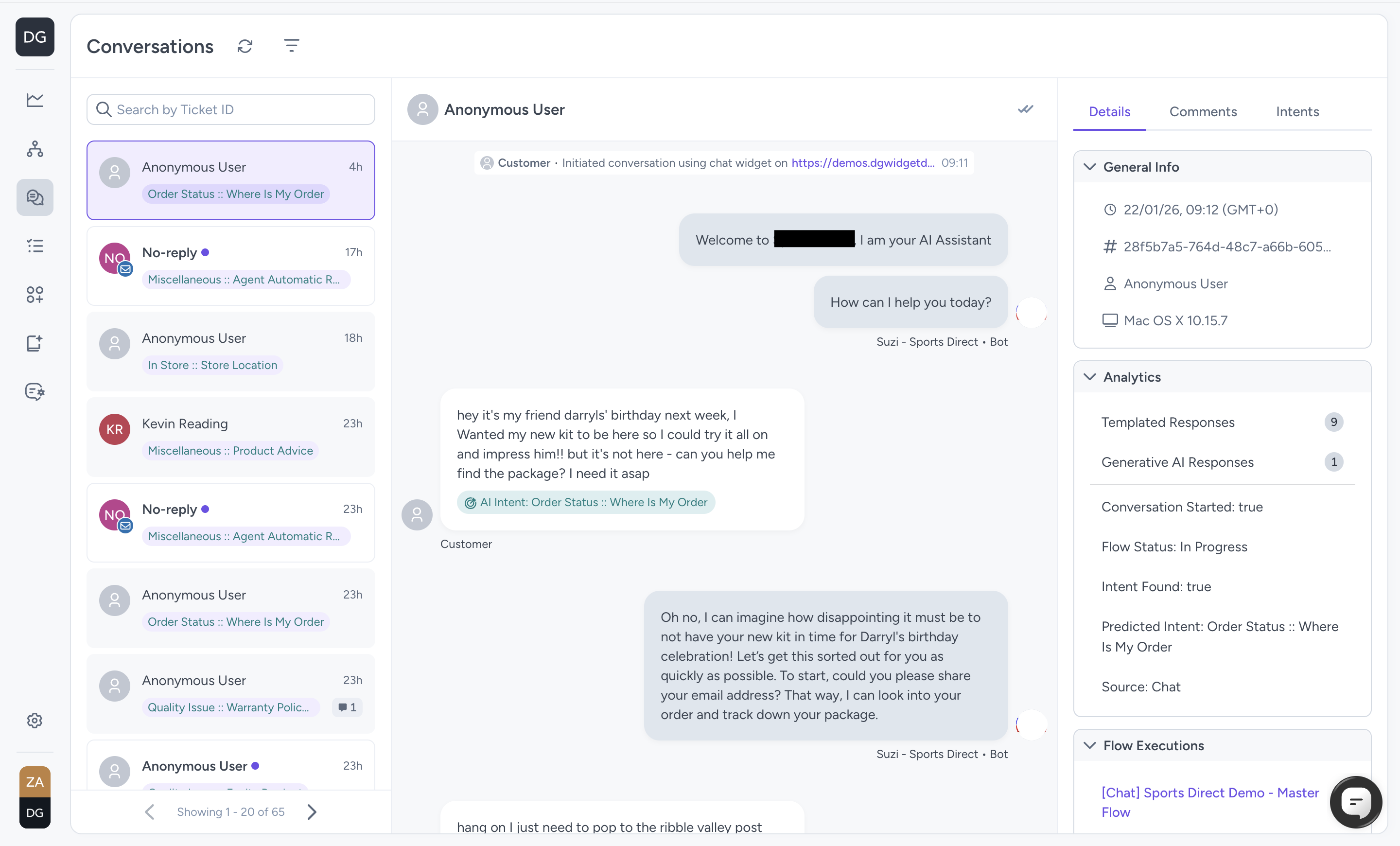
The Conversations Page is used to review customer interactions handled by DG, understand what happened (including any automation, intent detection, or knowledge base articles used), and take follow-up actions such as providing intent feedback, suggesting responses, or investigating Flows.
Quick start
- Open the Conversations
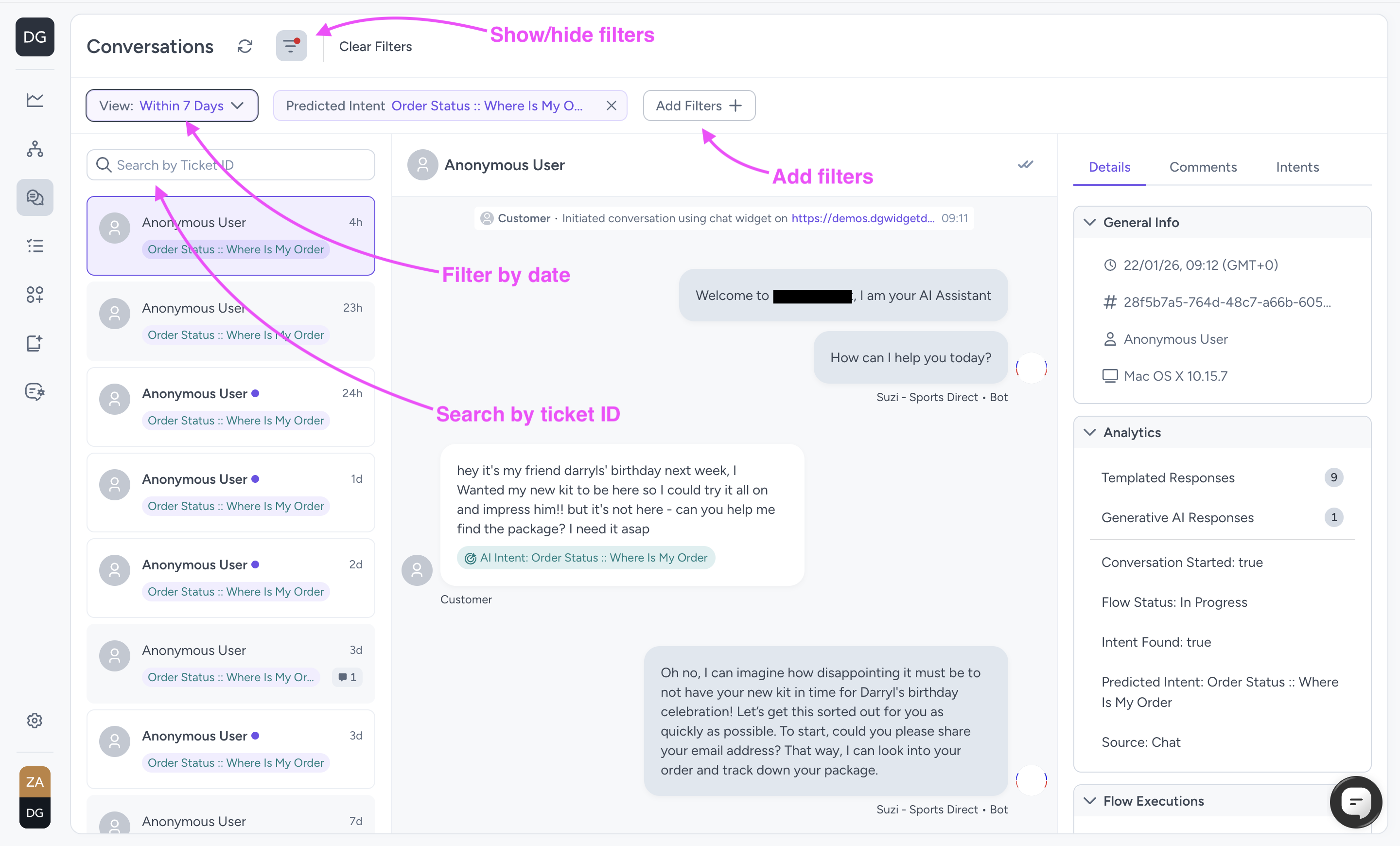
- Use Search by Ticket ID or Show filters to find the conversation(s) you need.
- Click a conversation in the list to open it.
- Review the message timeline and any automation, intent detection, or knowledge base articles used.
- Take any follow-up actions (intent feedback, response suggestion, comment).
Common tasks
Find a conversation (search + filters)
- Go to Conversations.
- Either:
- Use Search by Ticket ID to search using a ticket ID from your helpdesk
- Use Show Filters to search by any analytic field (e.g. Requester Name, Requester Email, or Channel).
- Review the message timeline and any automation, intent detection, or knowledge base articles used.
Result: The conversation list updates to show only matching results.
Review a conversation end-to-end
- Select a conversation from the list.
- Read the message timeline from start to finish.
- Check the conversation summary panel for key metadata like status, channel, customer details, and timestamps.
Result: You understand what the customer asked, what DG responded, and how the conversation ended.
Understand what DG / automation did
- Select a conversation from the list.
- Either:
- Click on an individual message in the conversation timeline to see the Flow Origin (flow that generated that message).
- Look at the Details panel on the right and open the Flow Executions section to see the list of flows executed on this conversation.
- Review the flows used. Clicking a flow execution from the list will take you to the Tracker view, showing how the flow executed on this conversation.
Result: You can explain why DG responded the way it did and whether the automation behaved as expected.
Tip: If you’re not sure what each of the flows do or why they were used, feel free to reach out to your CSM/SE for an explanation.
Provide intent feedback
- Open a conversation.
- Click a customer’s message with the intent detection tag.
- Mark the intent detected as correct or incorrect, using the tick and cross buttons on the right.
Result: You have provided feedback to the AI on which intents were correct/incorrect.
Add a comment
- Open a conversation.
- Click a message from the generative agent.
- Click the Comments button.
- Add your comment to the text input that appears and click Submit.
Result: The conversation commentary can be later reviewed with your team and DG.
Suggest a response
- Open a conversation.
- Click a message from the generative agent.
- Click the Suggest button.
- Add your suggested response to the text input that appears and click Submit.
Result: The conversation commentary can be later reviewed with your team and DG.
Share a conversation link
- Open a conversation.
- Copy the URL from your browser.
- Send the link to a teammate.
Result: A teammate can open the same conversation view.
Tips & best practices
- Filter by date range first to keep results manageable.
- You can find examples of the analytics data you can use to filter conversation in the Details > Analytics panel of any conversation.
Troubleshooting
-
You can’t find a conversation: Widen your date range and clear filters, then search again.
-
Helpdesk link is missing: The conversation may not be associated to a ticket, or the module connection may not be enabled.
-
You can view but not edit/take actions: Check your permissions/role.
Updated 21 days ago