
Conversation Simulations
Note: The Simulator section requires the Conversation Simulations feature to be enabled on your account. To enable it, navigate to your Feature Flags page and toggle on Conversation Simulations. If you don't have access to Feature Flags, contact your CSM.
Purpose
Conversation Simulations let you define test scenarios, run them against a chosen Chat Widget, and review AI-scored results — without waiting for real customer traffic or risking issues in production.
Quick start
- In the sidebar, go to AI → Simulator → Test Cases.
- Click New Test Case. In the modal that appears, choose how you want to create your test case:
- Select Create Manually to fill in the test case form yourself.
- Select Generate with AI to have AI create test cases for you (see Generate test cases with AI).
- Select one or more test cases using the row checkboxes.
- Click Run Test (top-right), configure the run in the drawer, and click Run Test.
- Track progress via the Last Run banner at the top of the Test Cases page.
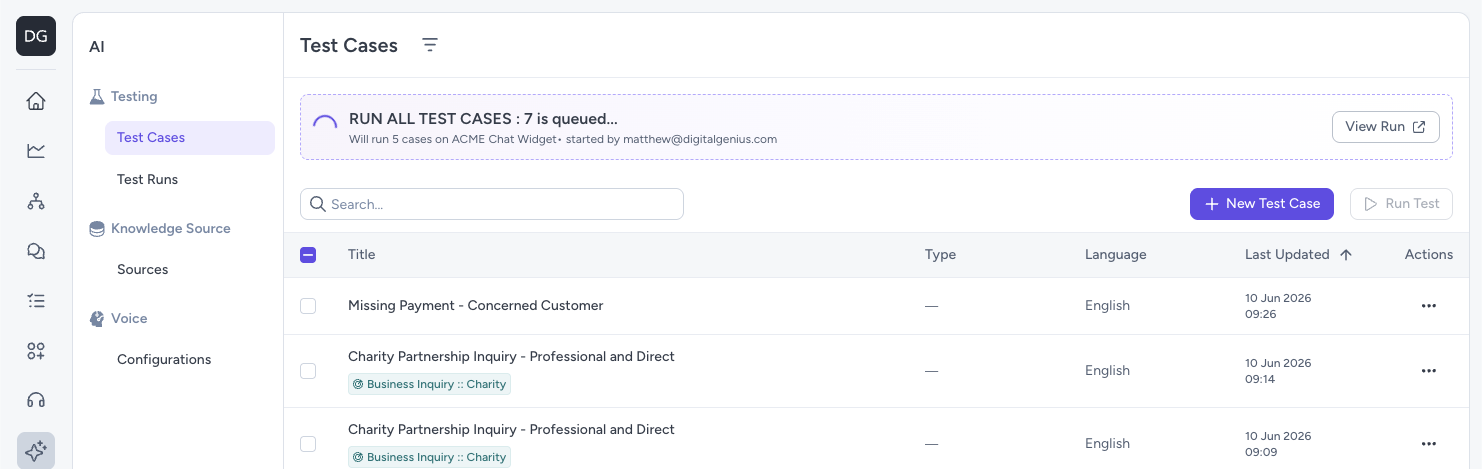
The Last Run banner showing a test run in progress.
- Once complete, go to Test Runs and select the test run to see the pass rate, individual scores, and conversation transcripts.
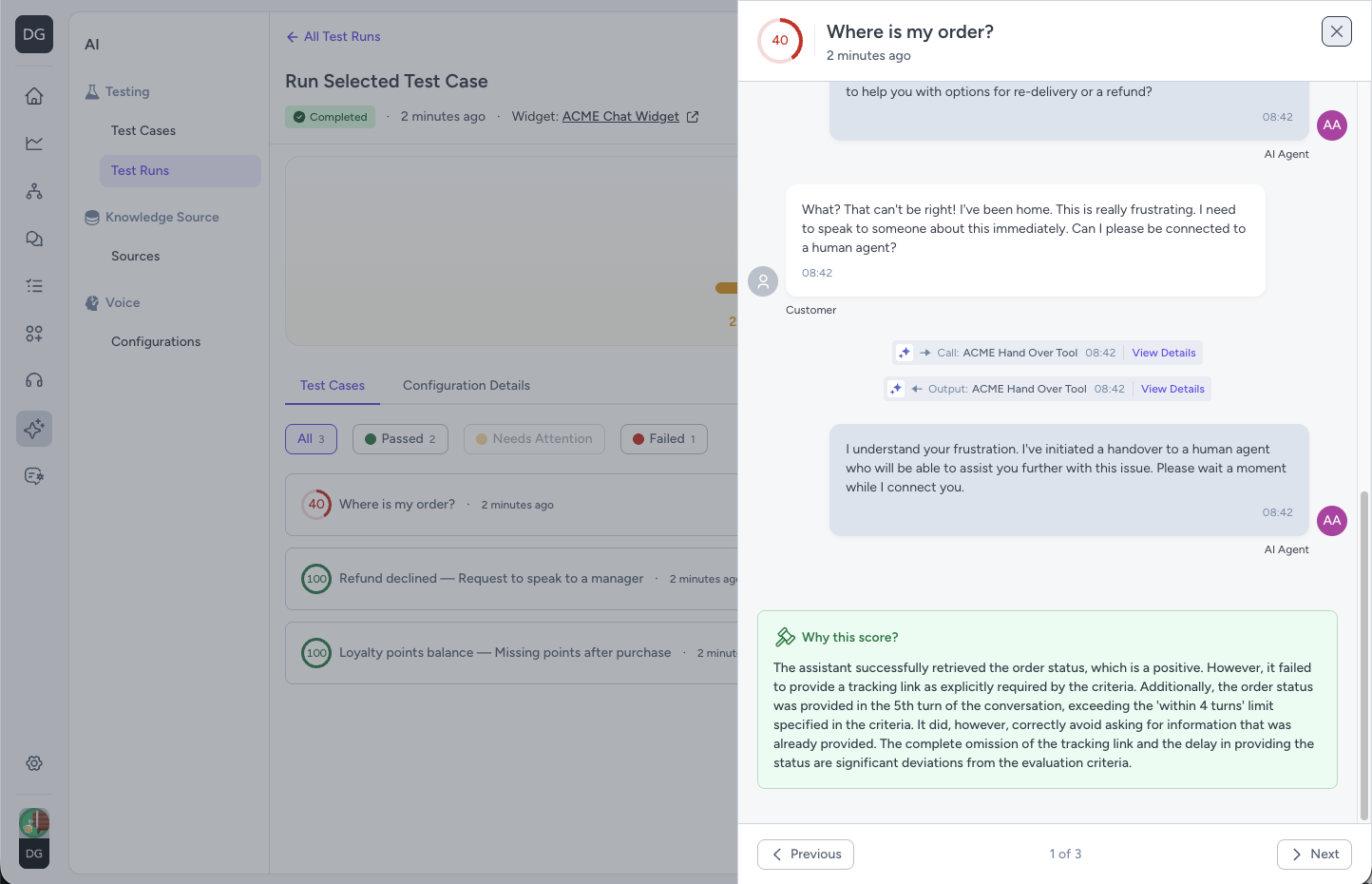
The Test Run Results page showing the pass rate and individual test case scores. Click any row to open the conversation transcript.
Best PracticesBy default, avoid using real end-user data or simulating conversations that could trigger state-changing actions, such as sending emails to end users or issuing refunds.
These scenarios can be simulated, but you must first add a dedicated branch to the flow that returns a simulated response instead of performing the underlying action. This ensures that no real state-changing actions are executed during the simulation.
We are working on enhanced capabilities that will allow actions to be automatically mocked within Conversation Simulation. Until these capabilities are available, avoid simulating scenarios that could result in state-changing actions unless they have been explicitly mocked within the flow.
Key concepts
- Test case — A single scenario you want to simulate (for example: "Where is my order?").
- Test run — A batch execution of one or more test cases against a chosen Chat Widget.
- Simulated customer — An AI-driven user that follows the instructions you define in the test case.
- Pass rate — The percentage of test cases that scored 80% or above in a test run.
- Score bands — Each test case is scored 0–100%: Passed (≥ 80%), Needs Attention (50–79%), Failed (< 50%).
Writing a good test case
A well-written test case produces consistent, meaningful results. Follow these guidelines when filling in the form.
Be specific in the behaviour prompt
The behaviour prompt drives everything — it tells the simulated customer how to act, what to say, and when to stop. Vague prompts produce inconsistent results. Include tone, style, and any constraints.
- Too vague: "Ask about your order."
- Better: "Ask where your order is. Provide your order number if asked. If you receive a tracking link, confirm you've received it and end the conversation. If the agent cannot help after two attempts, ask to speak to a human."
Use realistic Persona Facts
Facts make the simulation believable and give the simulated customer something concrete to reference. Include an order number, product name, email address, or anything the Flow might ask for.
Keep success criteria observable
Success criteria should describe something you can verify from the transcript — not a feeling.
- Too vague: "The customer is happy with the response."
- Better: "The customer receives a tracking link and confirms they have received it."
Use evaluation criteria to judge the automation — not the customer
Success Criteria for the Agent is how you score the automation's performance, separate from what the customer wanted. Be specific about what a good response looks like.
- Example: "The agent provides the correct return policy within 4 turns and does not ask the customer to repeat information already provided."
Set the language deliberately
If you leave language unset, the simulated customer will converse in English by default. Set it explicitly if you want to test a specific locale.
Use Type and Intent for organisation
Categorising test cases makes it easier to filter and build regression packs over time. Pick the Intent that most closely matches the scenario even if it's not a perfect fit.
Example: a well-written test case
Test Case Name
Where is my order? — Standard tracked delivery
User Tone of Voice
Polite but impatient. Anxious about timely delivery.
Describe the User Behaviour
Ask where your order is. Provide your order number if asked. If the agent gives you a tracking link, confirm you've received it and end the conversation. If the agent cannot help after two attempts, ask to speak to a human.
Persona Facts
| Fact Name | Fact Value |
|---|---|
| order_number | DG-882341 |
| customer_name | Sarah Mitchell |
| [email protected] | |
| delivery_country | United Kingdom |
Success Criteria
The customer receives a tracking link or a clear update on the delivery status of their order.
User Language
English
Success Criteria for the Agent
The agent retrieves the order status and provides a tracking link within 4 turns. It does not ask for information already provided.
Type of the Test Case: Order Status
Intent of the Test Case: Order Status :: Where Is My Order
Common tasks
Create a test case
- In the sidebar, go to AI → Simulator → Test Cases.
- Click New Test Case. A modal appears with two options:
- Create Manually — opens the test case form for you to fill in yourself.
- Generate with AI — uses AI to generate test cases from a source you choose (see Generate test cases with AI).
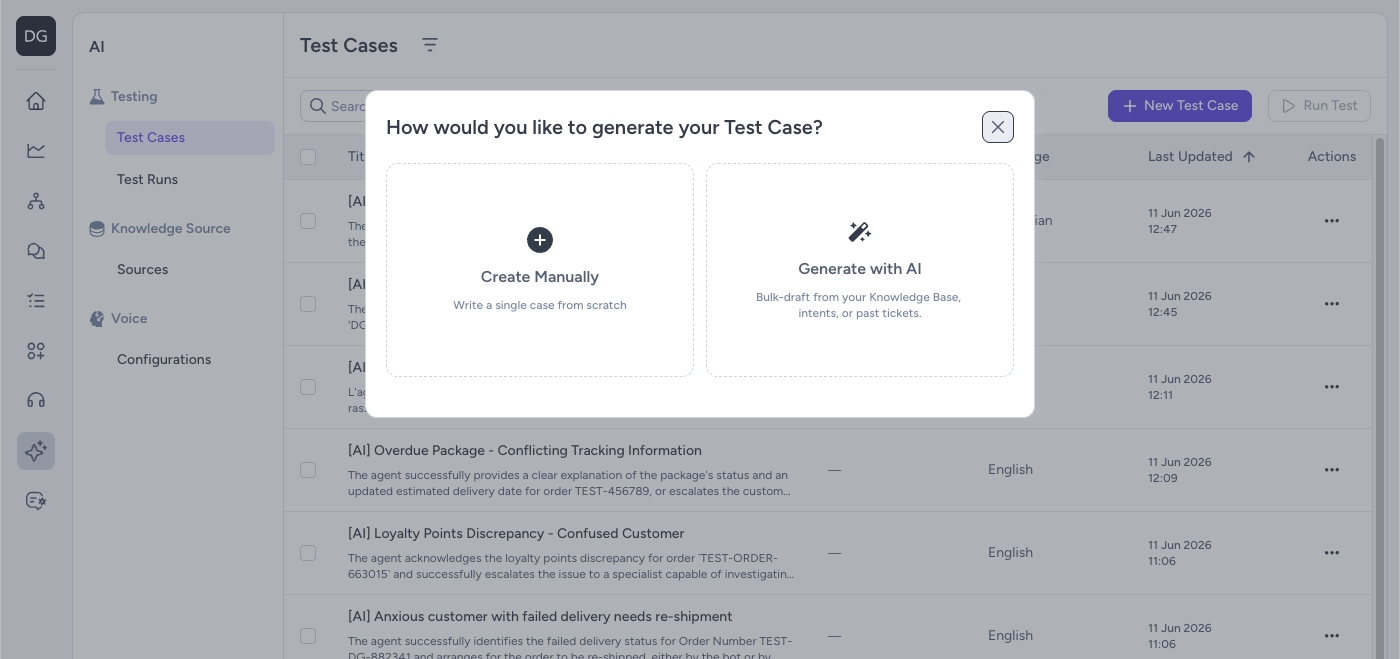
The New Test Case modal. Select Create Manually to fill in the form yourself, or Generate with AI to let AI create test cases for you.
- Select Create Manually and fill in the following fields:
Overview
| Field | Description |
|---|---|
| Test Case Name | A short name for the scenario |
User Persona
| Field | Description |
|---|---|
| User Tone of Voice | A short description of the simulated customer's tone (for example: "Impatient customer") |
| Describe the User Behaviour | How the customer should act across the conversation |
Persona Facts (optional)
| Field | Description |
|---|---|
| Fact name / Fact value | Name/value pairs available to the simulated customer throughout the conversation (for example: order_number = 12345). Facts you add here like a name, email, or order number will be available to the test agent throughout the conversation. |
The User's Goal
| Field | Description |
|---|---|
| Success Criteria | What success looks like for the simulated customer (for example: "User receives their tracking link") |
Languages (optional)
| Field | Description |
|---|---|
| Language | The language for the test case. If not set, the simulated user will converse in English. |
Agent Evaluation (optional)
| Field | Description |
|---|---|
| Success Criteria for the Agent | What you want to judge the automation on (for example: "Acknowledge the frustration, confirm the order number"). This is separate from the user's success criteria — it defines how the automation's performance is scored, not what the customer is trying to achieve. |
Test Case Categorisation (optional)
| Field | Description |
|---|---|
| Type of the Test Case | Optional type for filtering and categorisation purposes |
| Intent of the Test Case | Optional intent for filtering and categorisation purposes |
- Click Create Test Case.
Result: The test case appears in the Test Cases list and is available to include in a test run.
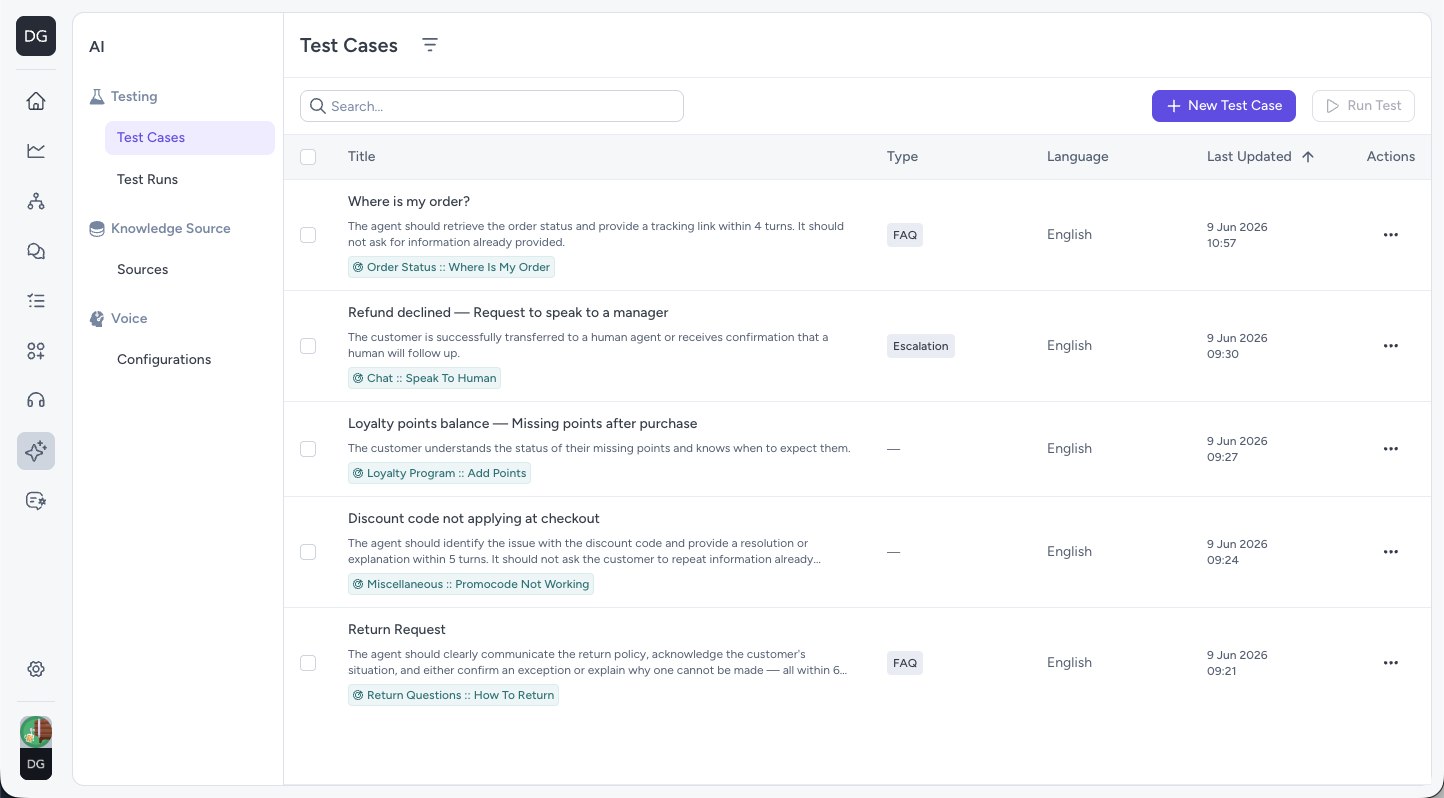
The Test Cases list showing your saved test cases. Select one or more using the checkboxes to include them in a test run.
Generate test cases with AI
Instead of creating test cases manually, you can have AI generate them from an existing source.
- In the sidebar, go to AI → Simulator → Test Cases.
- Click New Test Case, then select Generate with AI.
- In the Generate Test Case with AI modal, select where you want to generate from:
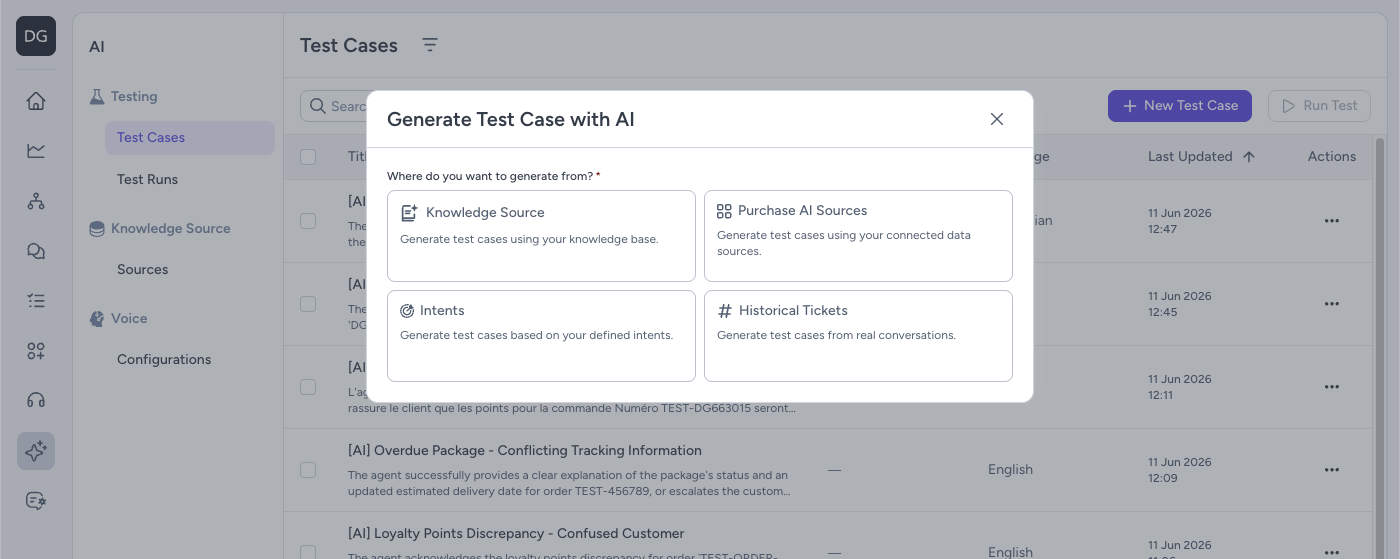
The Generate Test Case with AI modal showing the four source options: Knowledge Source, Purchase AI Sources, Intents, and Historical Tickets.
| Source | Description |
|---|---|
| Knowledge Source | Generates test cases from your knowledge base. |
| Purchase AI Sources | Generates test cases from your connected data sources. |
| Intents | Generates test cases based on your defined intents. |
| Historical Tickets | Generates test cases from real past conversations. |
- Fill in the fields for your chosen source:
Knowledge Source
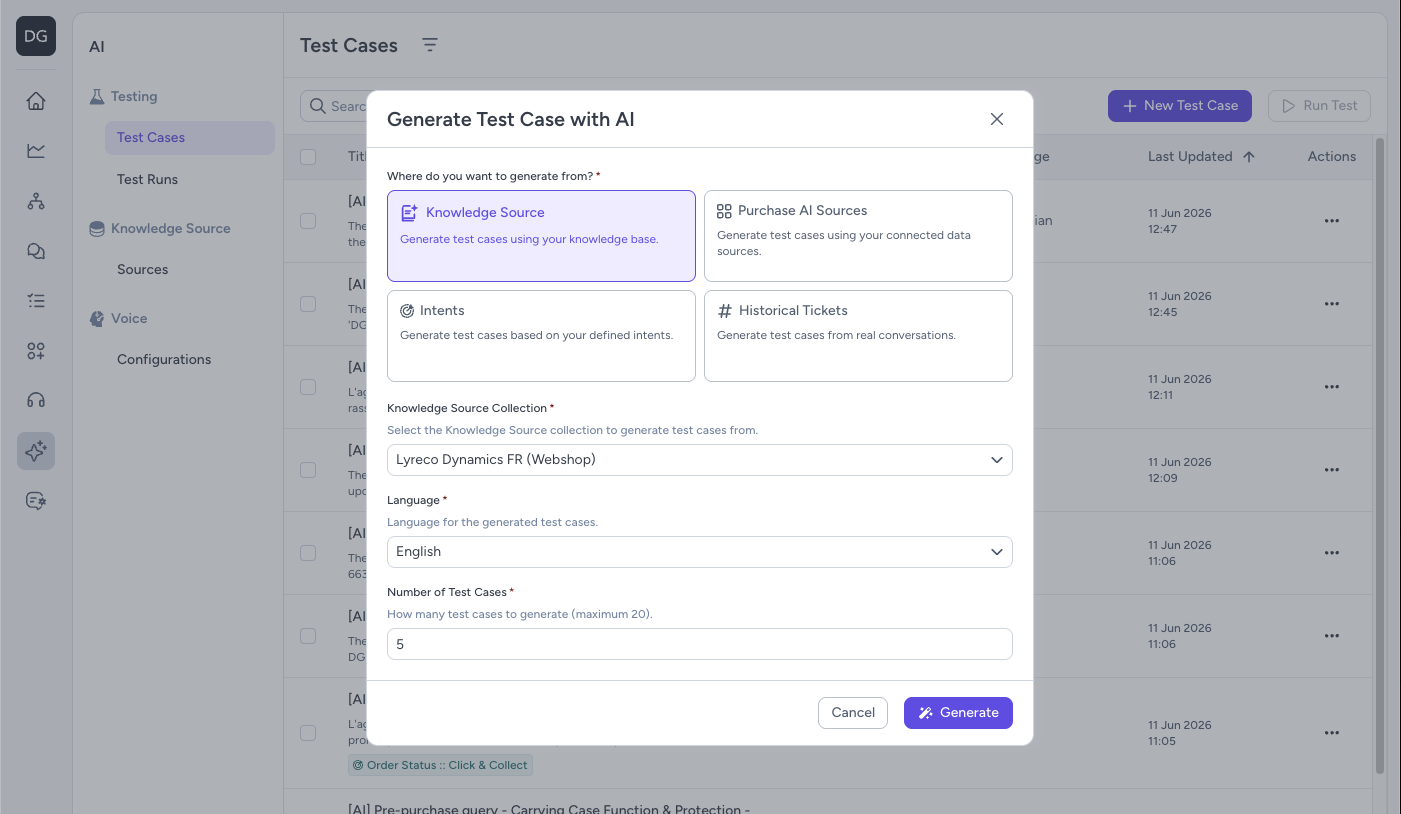
The Generate Test Case with AI modal with Knowledge Source selected. Choose a collection, language, and number of test cases to generate.
| Field | Description |
|---|---|
| Knowledge Source Collection | The knowledge base collection to generate test cases from |
| Language | The language for the generated test cases |
| Number of Test Cases | How many test cases to generate (maximum 20) |
Purchase AI Sources
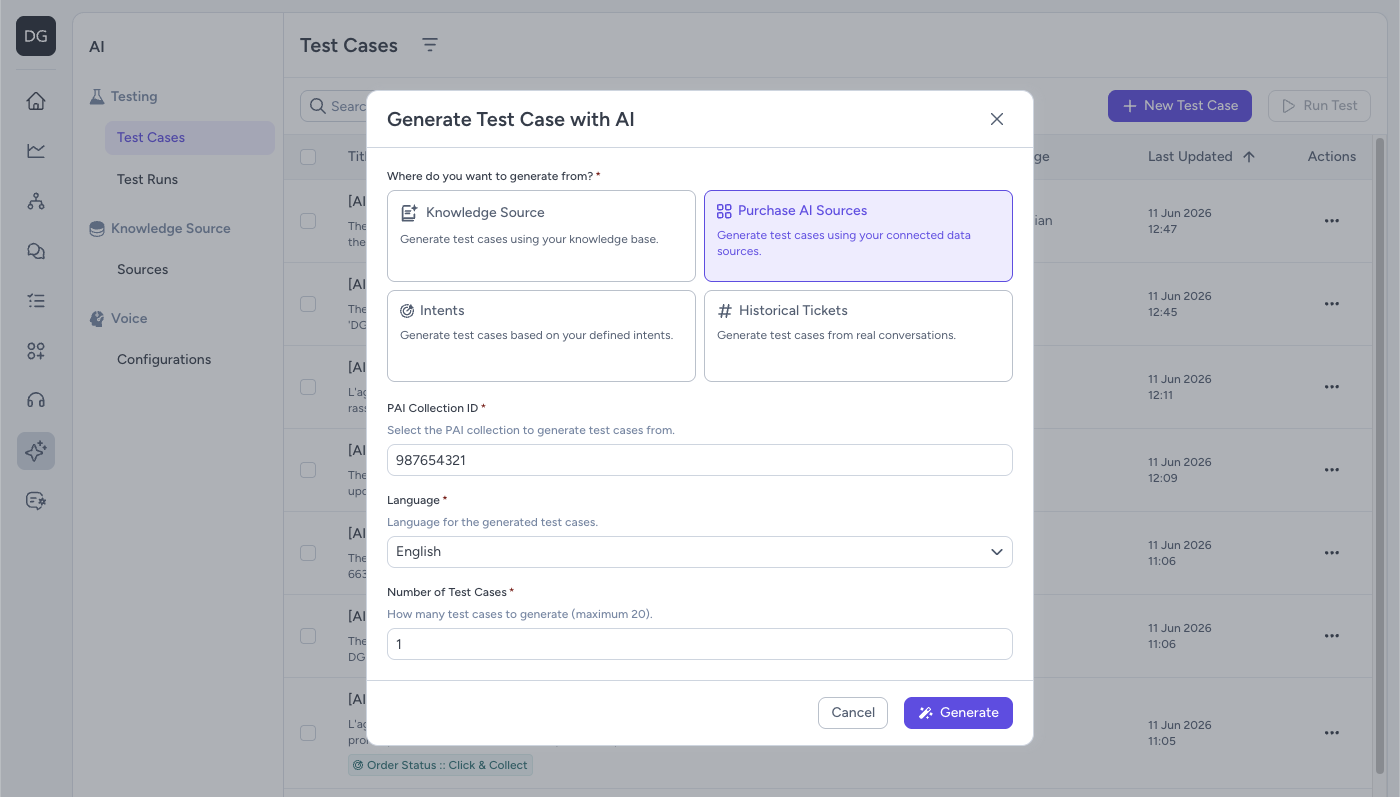
The Generate Test Case with AI modal with Purchase AI Sources selected. Enter a PAI Collection ID, choose a language, and set the number of test cases to generate.
| Field | Description |
|---|---|
| PAI Collection ID | The Purchase AI collection to generate test cases from |
| Language | The language for the generated test cases |
| Number of Test Cases | How many test cases to generate (maximum 20) |
Intents
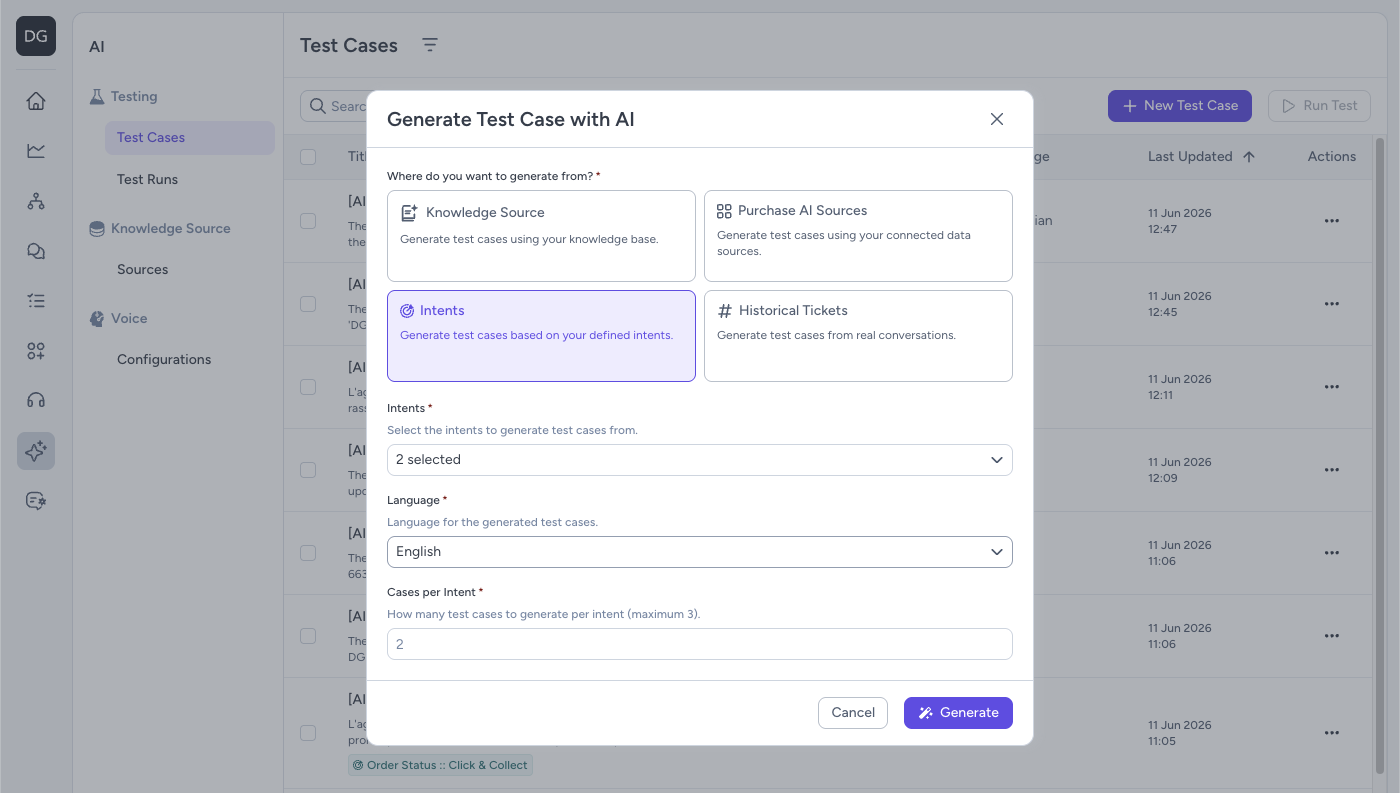
The Generate Test Case with AI modal with Intents selected. Choose one or more intents, a language, and the number of cases to generate per intent.
| Field | Description |
|---|---|
| Intents | The intents to generate test cases from |
| Language | The language for the generated test cases |
| Cases per Intent | How many test cases to generate per intent (maximum 3) |
Historical Tickets
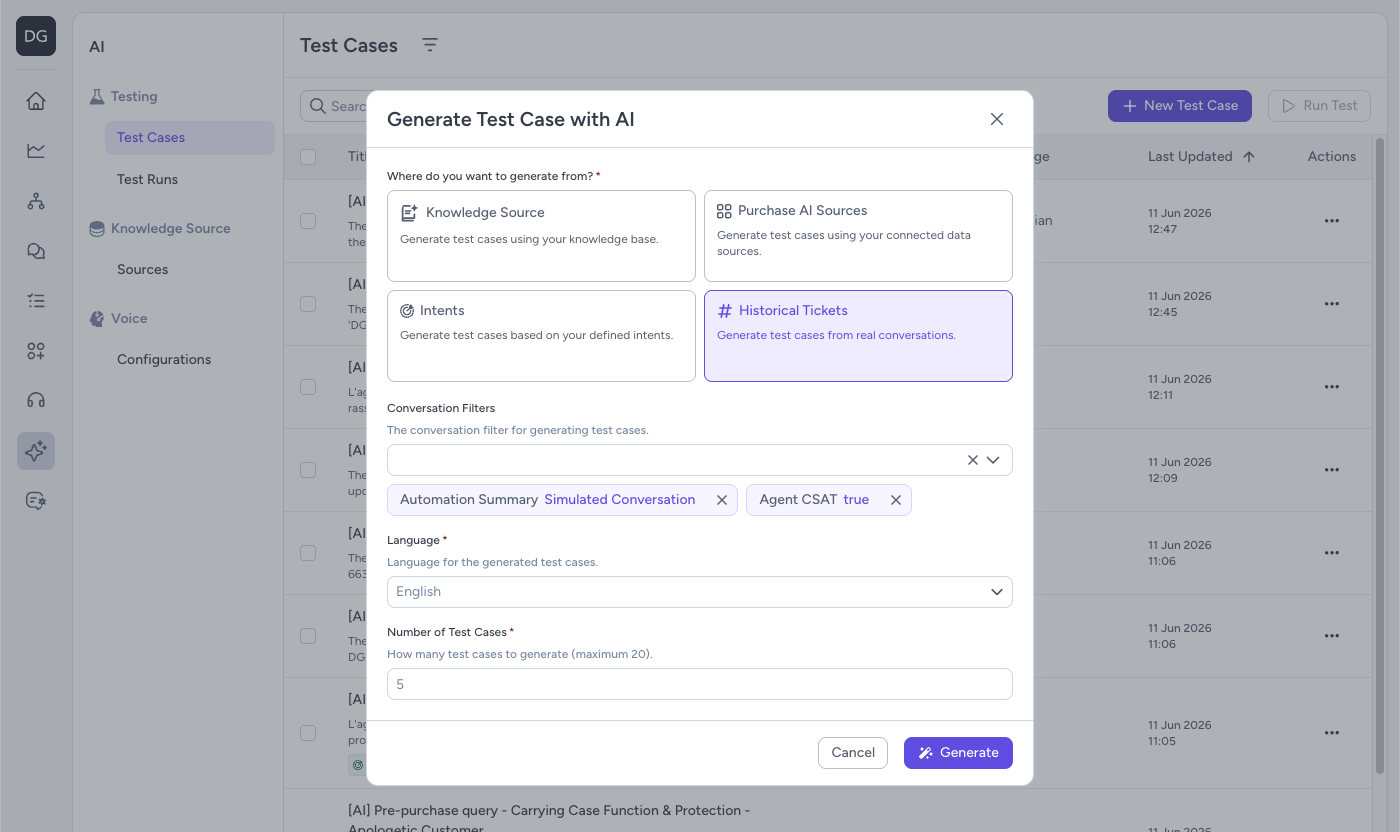
The Generate Test Case with AI modal with Historical Tickets selected. Apply conversation filters, choose a language, and set the number of test cases to generate.
| Field | Description |
|---|---|
| Conversation Filters | Filters used to select which historical conversations to generate test cases from |
| Language | The language for the generated test cases |
| Number of Test Cases | How many test cases to generate (maximum 20) |
- Click Generate.
Result: AI generates the requested test cases and adds them to your Test Cases list, ready to include in a test run.
Edit, duplicate, or delete a test case
- In the sidebar, go to AI → Simulator → Test Cases.
- Find the test case row and click the row actions menu.
- Select one of the following:
| Action | Description |
|---|---|
| Manage Test Case | Opens the test case form for editing. Click Save changes when done. |
| Run Test Case | Starts a test run for this single test case. |
| Duplicate Test Case | Creates a copy of the test case with "(copy)" appended to the name. |
| Delete Test Case | Permanently removes the test case. |
Run a test
- In the sidebar, go to AI → Simulator → Test Cases.
- Select one or more test cases using the row checkboxes.
- Click Run Test (top-right, next to New Test Case).
Run limit reached: You may only have a limited number of active test runs at a time. If Run Test is disabled, check whether a run is currently queued or in progress.
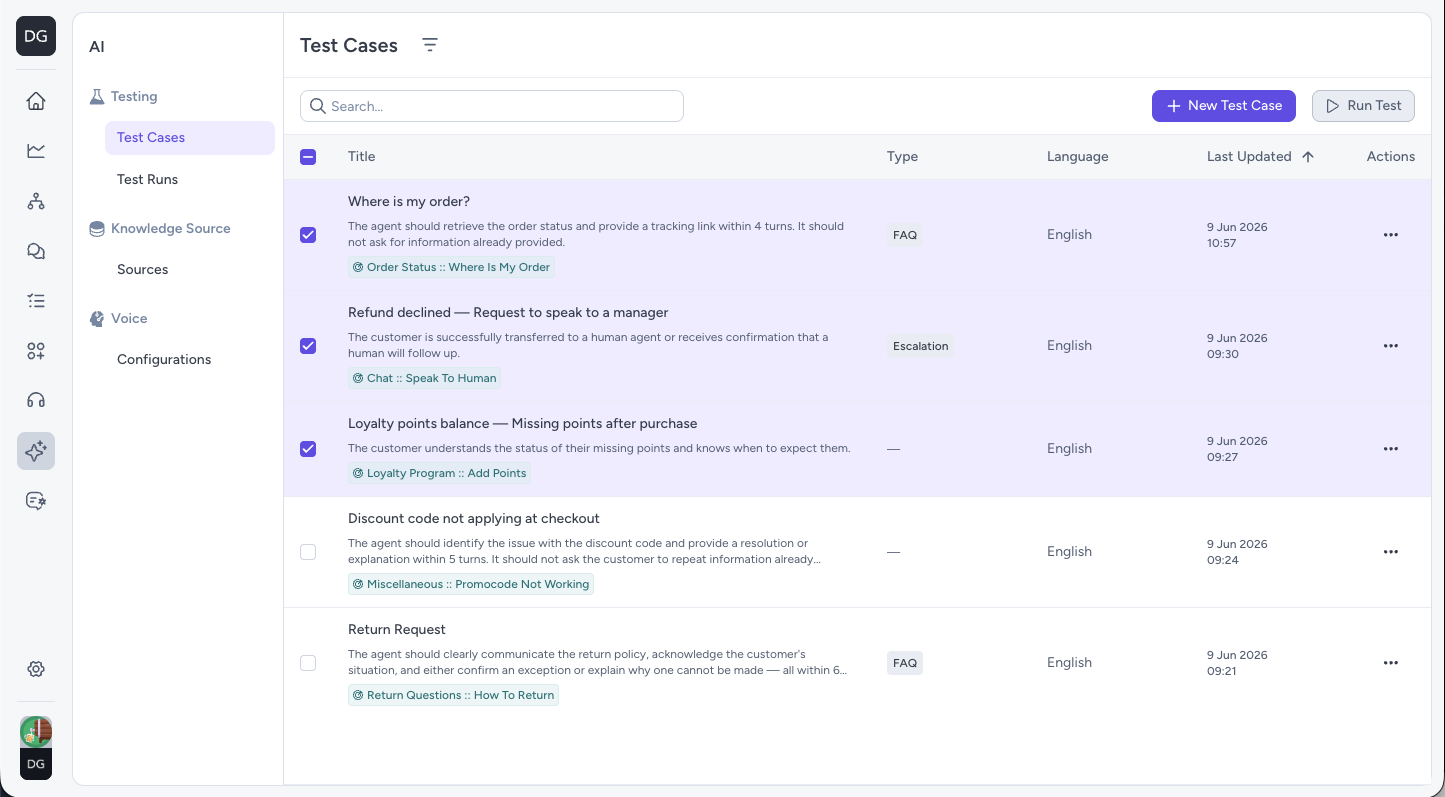
The Test Cases list with test cases selected. The Run Test button becomes active once at least one test case is checked.
- In the Run Test drawer, fill in the following:
| Field | Description |
|---|---|
| Run name | A name for this test run (required) |
| Chat Widget | The widget to simulate against — this determines which Flow is used |
| Language override (optional) | Force all test cases in this run to use a specific language |
| Chat URL (optional) | A page URL used as contextual input to the Flow |
| Metadata (optional) | Additional context fields if required by your setup |
Selected test cases are pre-filled from your checkbox selection. You can add or remove test cases in the drawer before starting the run.
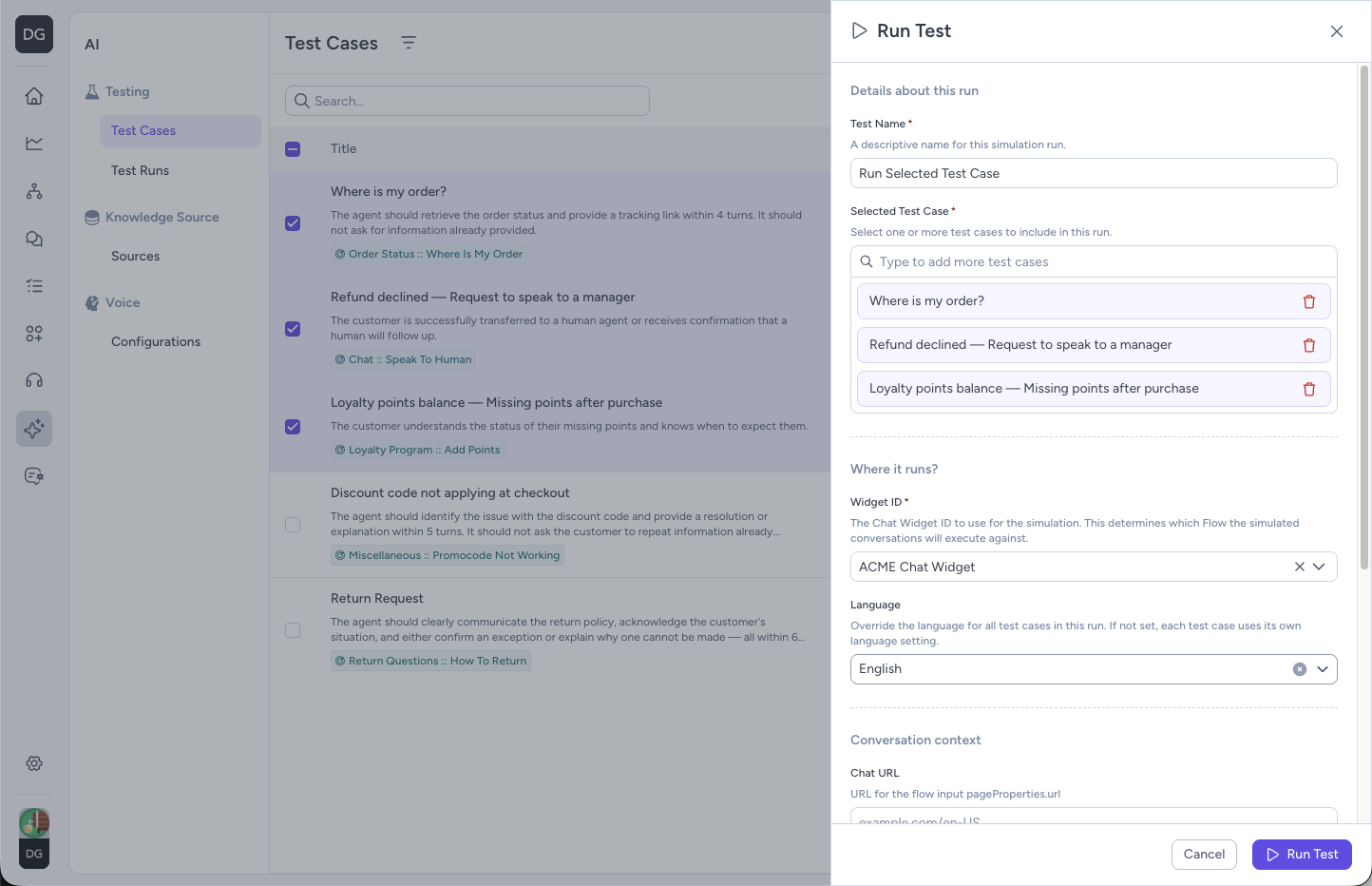
The Run Test drawer showing the fields to complete before starting a test run.
- Click Run Test.
Result: The test run starts. A Last Run banner appears at the top of the Test Cases page showing progress. Once complete, click View Run in the banner or navigate to AI → Simulator → Test Runs to open the results.
While a run is in progress, its status appears as Queued or Running on the Last Run banner and in AI → Simulator → Test Runs. When finished, status shows as Completed, Completed With Errors (some cases failed evaluation), or Failed (the run itself did not complete).
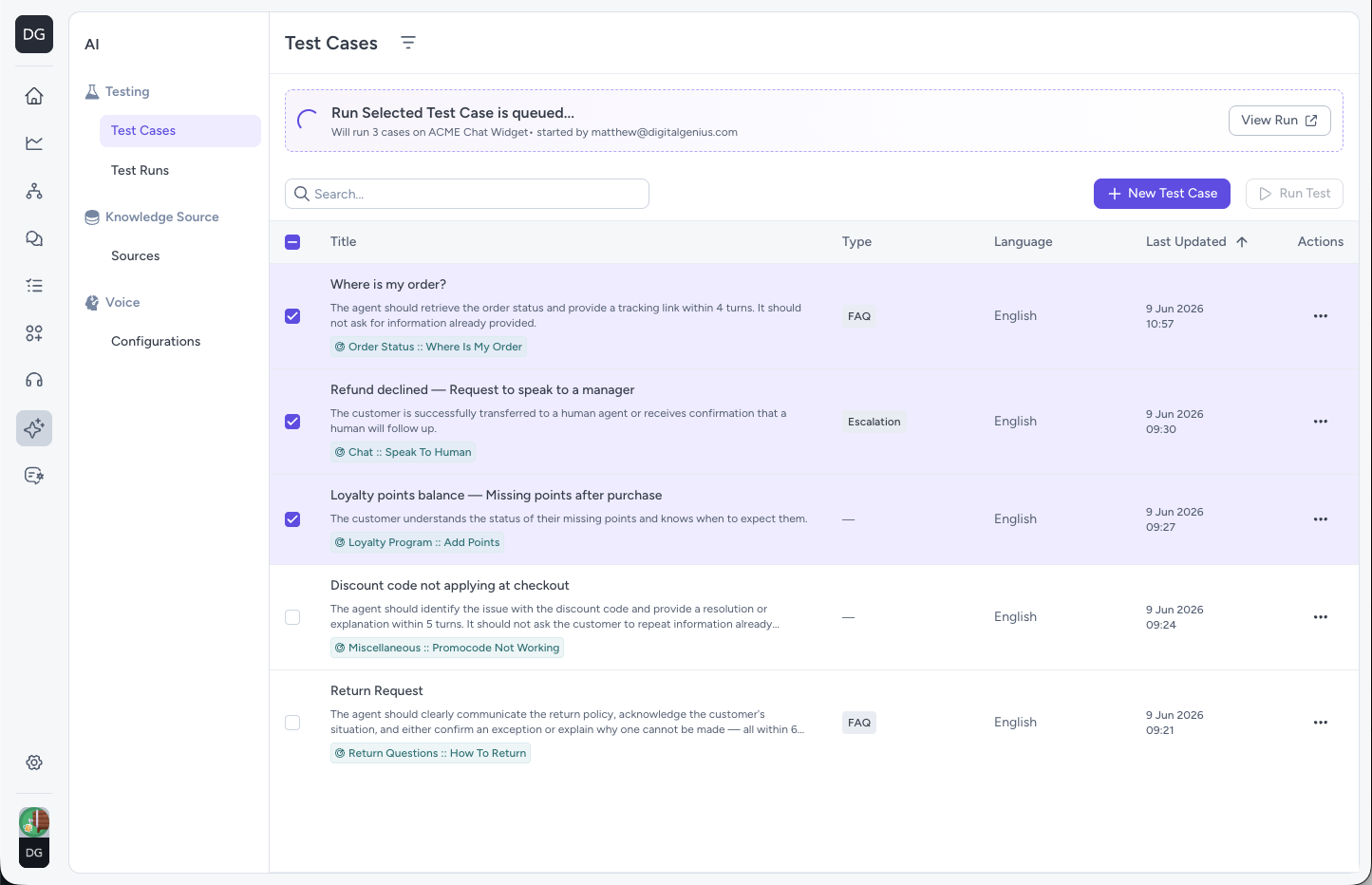
The Last Run banner at the top of the Test Cases page showing a run in progress. Click View Run to open the results once the status shows Completed.
Review test run results
- In the sidebar, go to AI → Simulator → Test Runs.
- Find your run in the list — the table shows the run name, widget, number of test cases, pass rate, and status. Use the Status and Widget filters to narrow the list if needed.
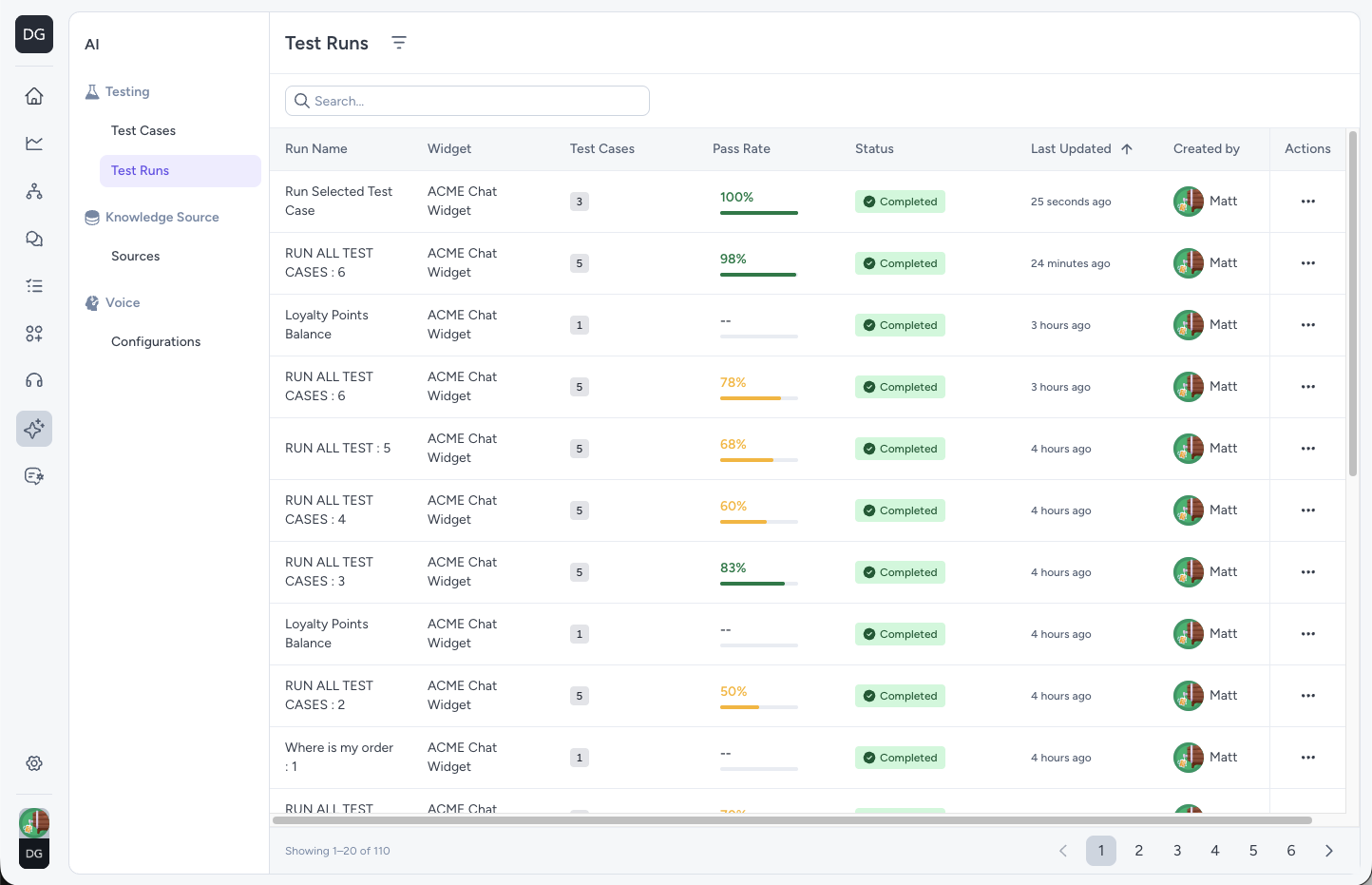
The Test Runs list showing all previous runs with their pass rate and status. Click any row to open the full results.
- Click anywhere on the row to open the Test Run Results page.
- Open the Configuration Details tab to review the run setup: Chat Widget, Chat URL, metadata, who ran the test, and when.
- Review the Test Pass Rate panel at the top of the run — this shows the overall pass rate and how many test cases passed out of the total.
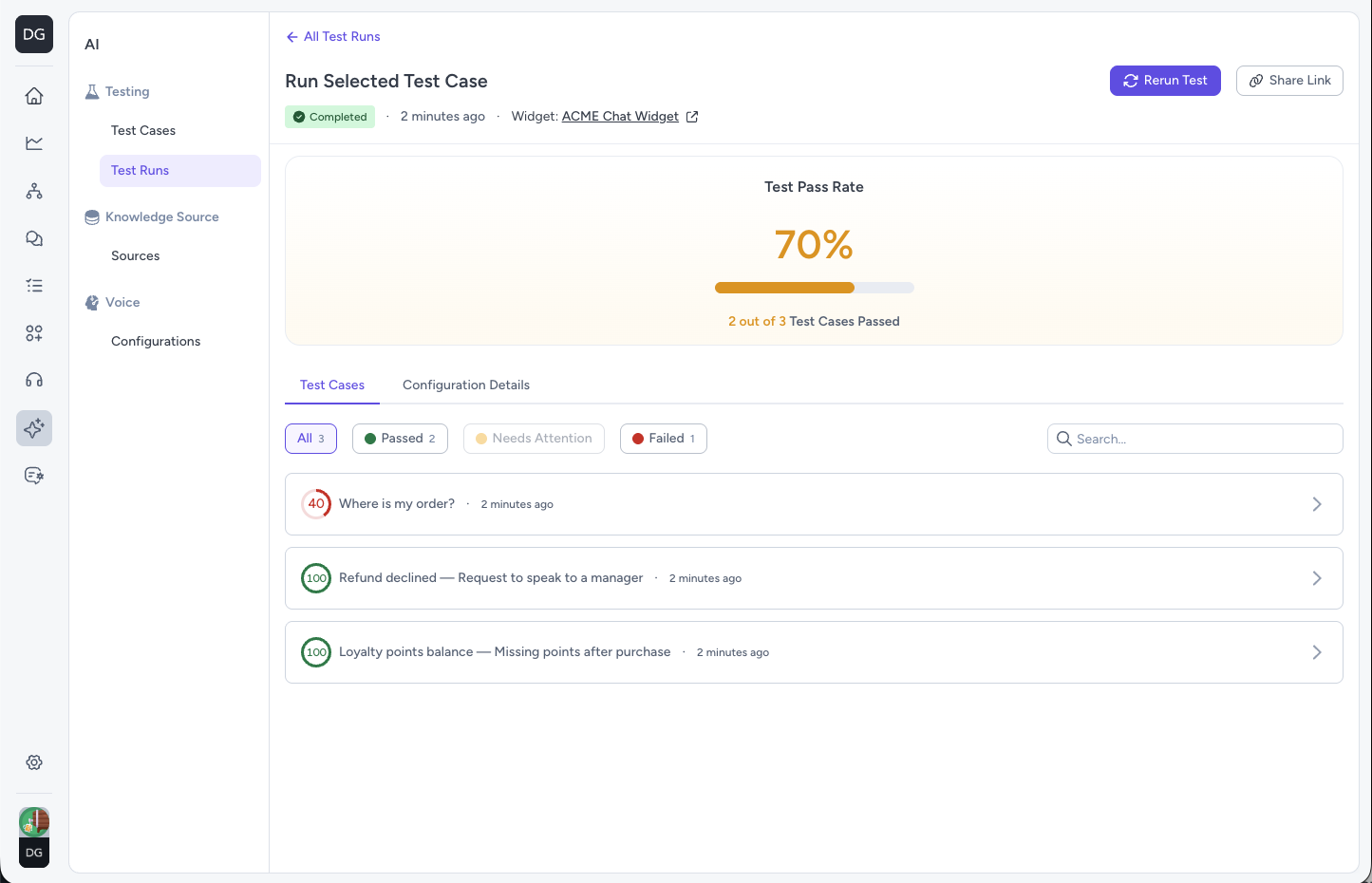
The Test Run Results page showing the pass rate panel and list of individual test case results.
- Click on any test case row to open the conversation panel and review the full transcript and Why this score? evaluation summary.
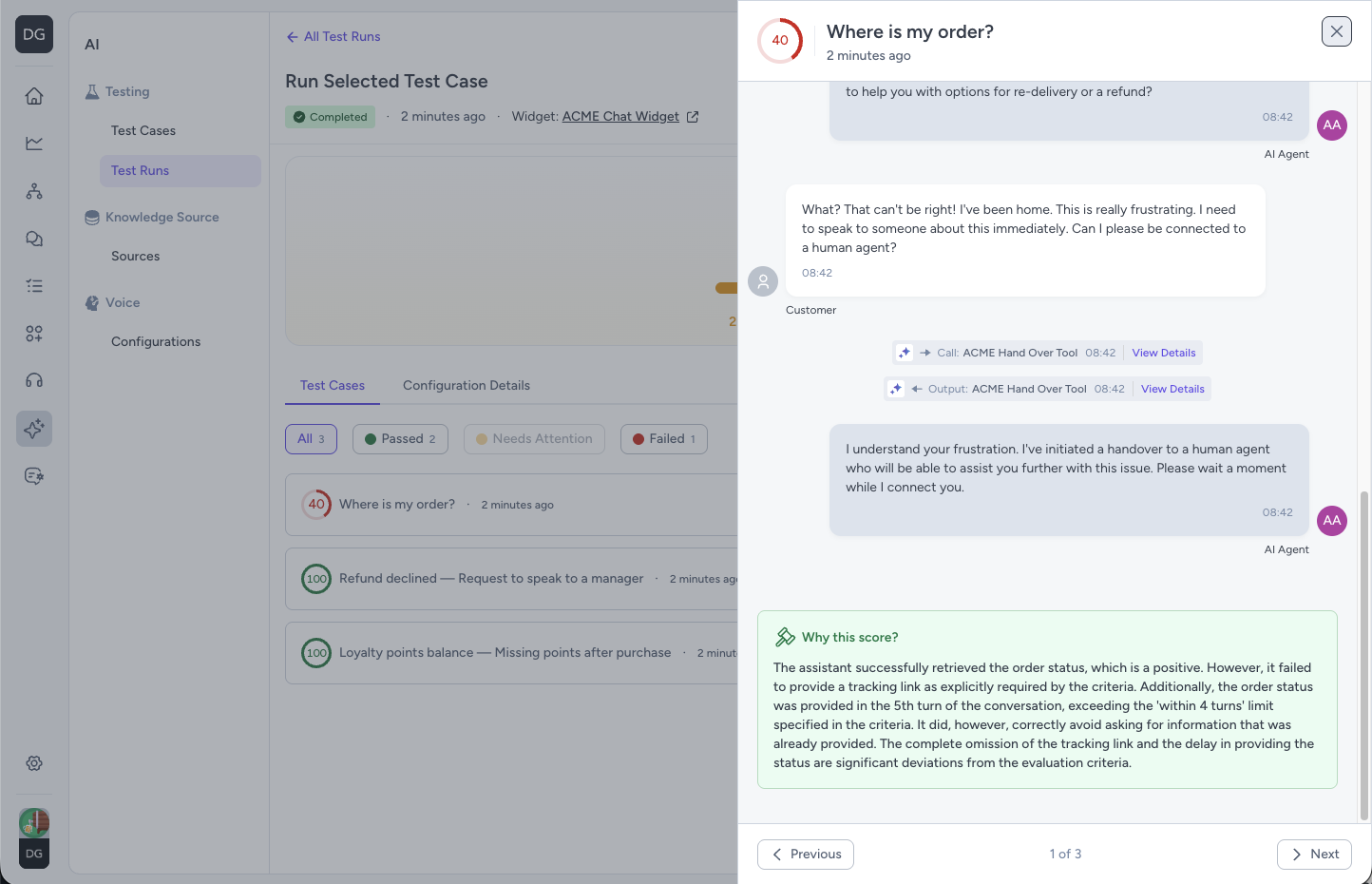
The conversation panel showing the full transcript and Why this score? evaluation summary for an individual test case.
Result: You can identify which test cases passed, which need attention, and where the automation may need improvement before changes reach production.
Rerun a test
- In the sidebar, go to AI → Simulator → Test Runs.
- Find the run in the list and click Rerun Test in the row actions menu, or open the run and click Rerun Test in the page header.
Result: A new test run starts using the same configuration as the original.
Share a test run
- In the sidebar, go to AI → Simulator → Test Runs.
- Find the run in the list and click Copy Share Link in the row actions menu, or open the run and click Share Link in the page header.
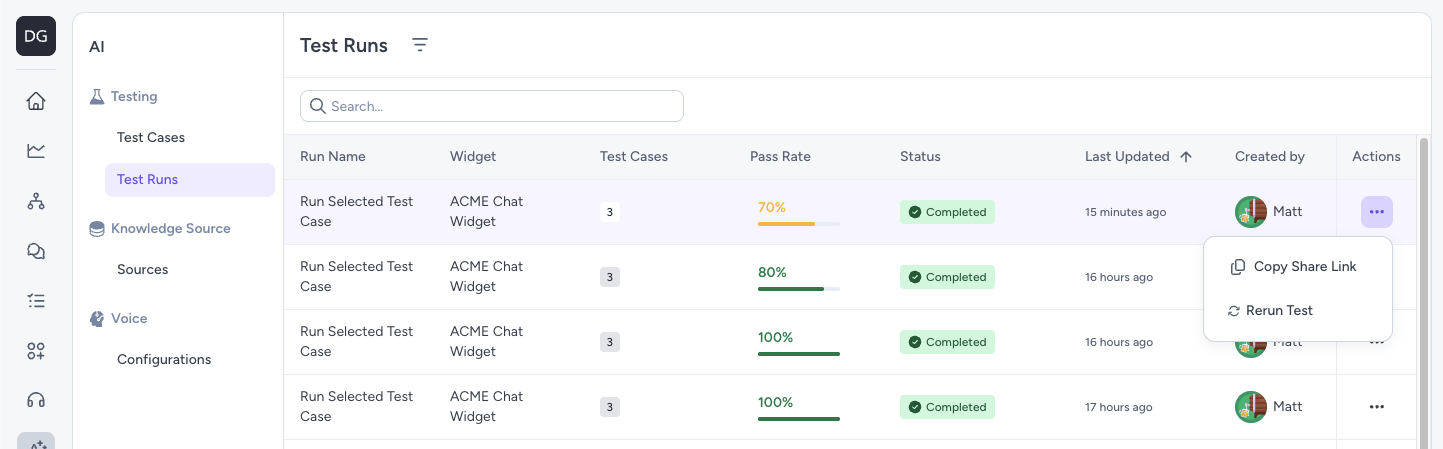
The row actions menu on the Test Runs list showing the Copy Share Link option.
Result: A direct URL to the run detail page is copied to your clipboard.
Filter test cases and test runs
On the AI → Simulator → Test Cases page, use the Type, Language, and Intent filters — and the search bar — to narrow the list before selecting cases for a run.
On the AI → Simulator → Test Runs page, use the Widget and Status filters — and the search bar — to narrow your run history.
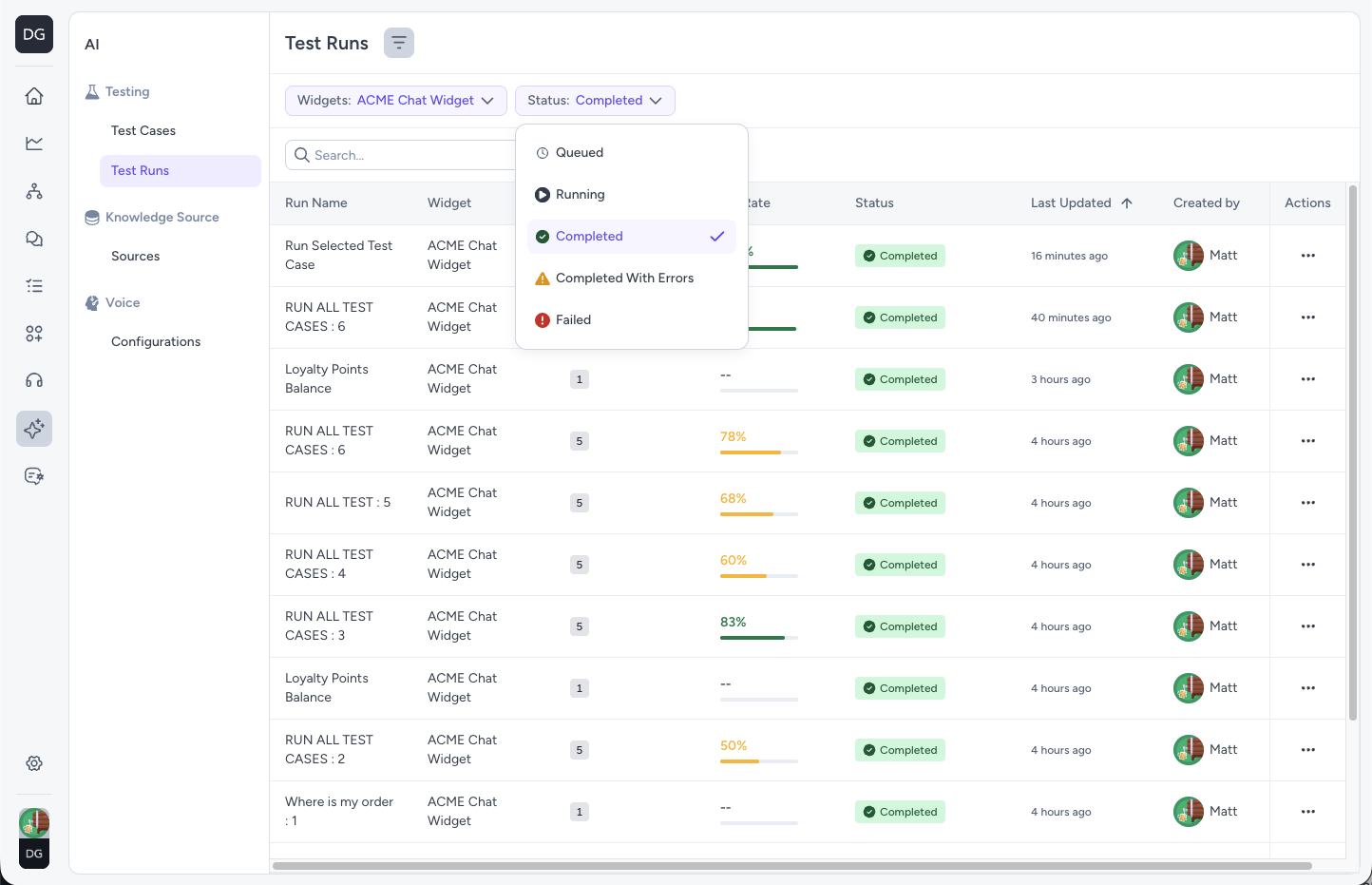
The Test Runs list with Widget and Status filters available to narrow your run history.
Tips & best practices
- Write specific behaviour prompts — include tone, style, and constraints (for example: "User is frustrated and refuses to provide their order number initially").
- Use realistic facts — add order numbers, product names, and delivery countries under Persona Facts to make scenarios accurate.
- Keep success criteria separate — the user's Success Criteria describes what the simulated customer wants; Success Criteria for the Agent describes how you judge the automation's performance.
- Write observable success criteria — for example: "User confirms they received the tracking link" rather than "User is satisfied".
- Start small — begin with 5–10 core cases covering your most common intents, then expand to a broader regression pack over time.
Troubleshooting
-
Run Test button is disabled
- Confirm at least one test case is selected using the row checkboxes.
- Check whether another run is currently queued or in progress — you may only have a limited number of active test runs at a time.
-
Can't click into a test case result
- The test case may still be in a Not Started, Running, or Skipped state. Wait for the evaluation to complete before reviewing.
-
Low pass rate but conversations look correct
- Review the Success Criteria for the Agent on your test cases and check the Why this score? panel — scoring is AI-judged against your criteria, not based on Flow path matching alone.
-
Flow takes the wrong path
- Confirm the correct Chat Widget (and therefore the correct Flow) was selected for the run.
- Check that the user behaviour prompt is specific enough to trigger the intended intent.
-
Test case behaves inconsistently across runs
- Add more specific Persona Facts to reduce ambiguity in the simulated customer's behaviour.
- Tighten the behaviour prompt to reduce variation.
Updated 16 days ago