
Ask Genie
Your data has the answers. Ask Genie to find them.
Public BETAAsk Genie is in BETA testing and is actively being developed. Your feedback directly shapes it.
Overview
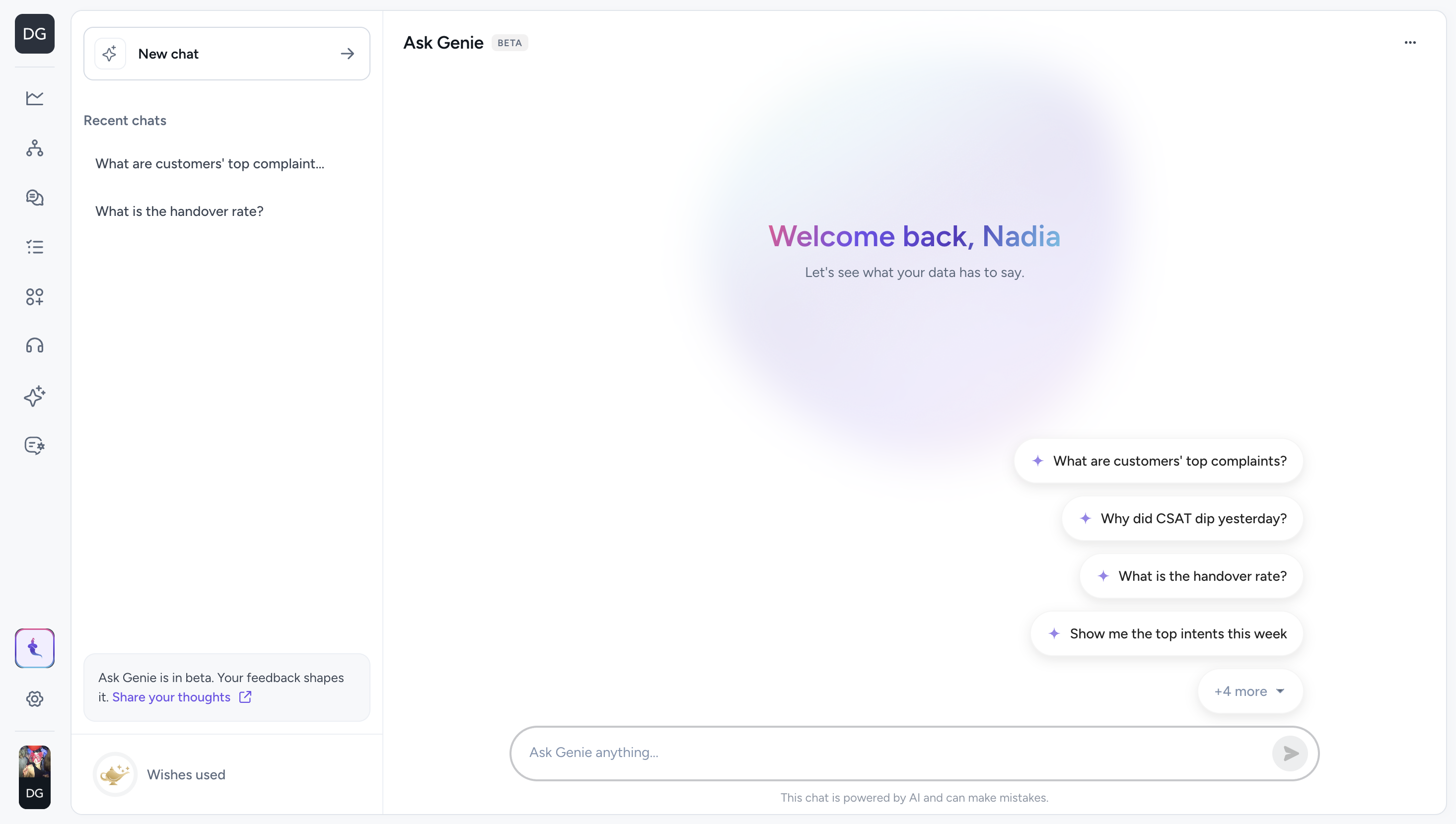
Ask Genie is your AI-powered assistant, built directly into the DigitalGenius Platform. It connects to your live data and lets you inspect executions, debug flows, and query analytics using plain English - no setup, no API keys, and no external tools required.
Access Ask Genie from the Ask Genie entry in the left navigation sidebar. A new chat opens straight away.
Getting Started
Ask Genie is available directly in your DigitalGenius Platform - no installation or API key is required.
- Click Ask Genie in the bottom left navigation sidebar.
- Type your question at the bottom of the screen and press Enter (or click the send button).
- Not sure where to start? Suggestion prompts appear on the home screen - click any of them to use it as your first message.
What You Can Do
- Analyse performance: Pull flow-level analytics to identify bottlenecks, track automation rates, and surface trends in CSAT, handover rates, and top intents.
- Debug Flows: Read flow schemas, trace execution hierarchies, and check execution logs to understand why a conversation went the way it did.
- Conversations & Tickets: View transcripts, search tickets, and dig into customer sentiment and complaint patterns.
- Configuration Audit: Inspect variables, connections, widgets, and account configuration to verify your setup is working as expected.
Capabilities
Render charts, inspect the data behind every answer, and download results — all without leaving the Platform.
Charts
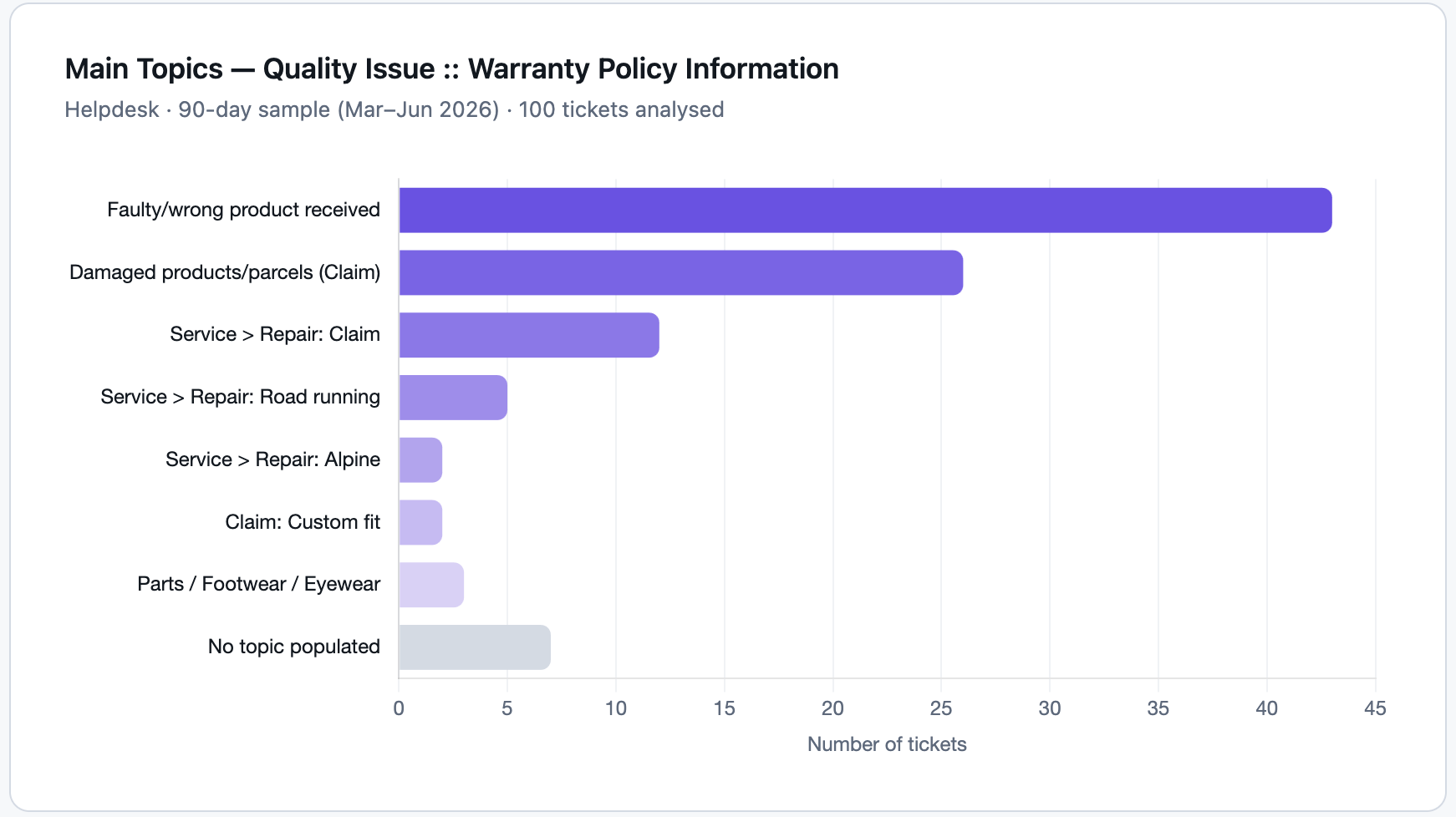
Need to visualise your data? Just ask. Tell Genie to render a chart and it will build one inline in the conversation - no exports, no third-party tools required.
To interact with a chart, hover over it to reveal the controls in the top-right corner:
- View fullscreen: Opens the chart in a fullscreen overlay for a closer look. From here you can take a screenshot to capture and share the chart.
- Download: Expands a menu with the option Download as HTML, which saves a self-contained, standalone chart file to your computer.
The fullscreen view also includes its own Download button so you can save charts from either context.
Tool transparency
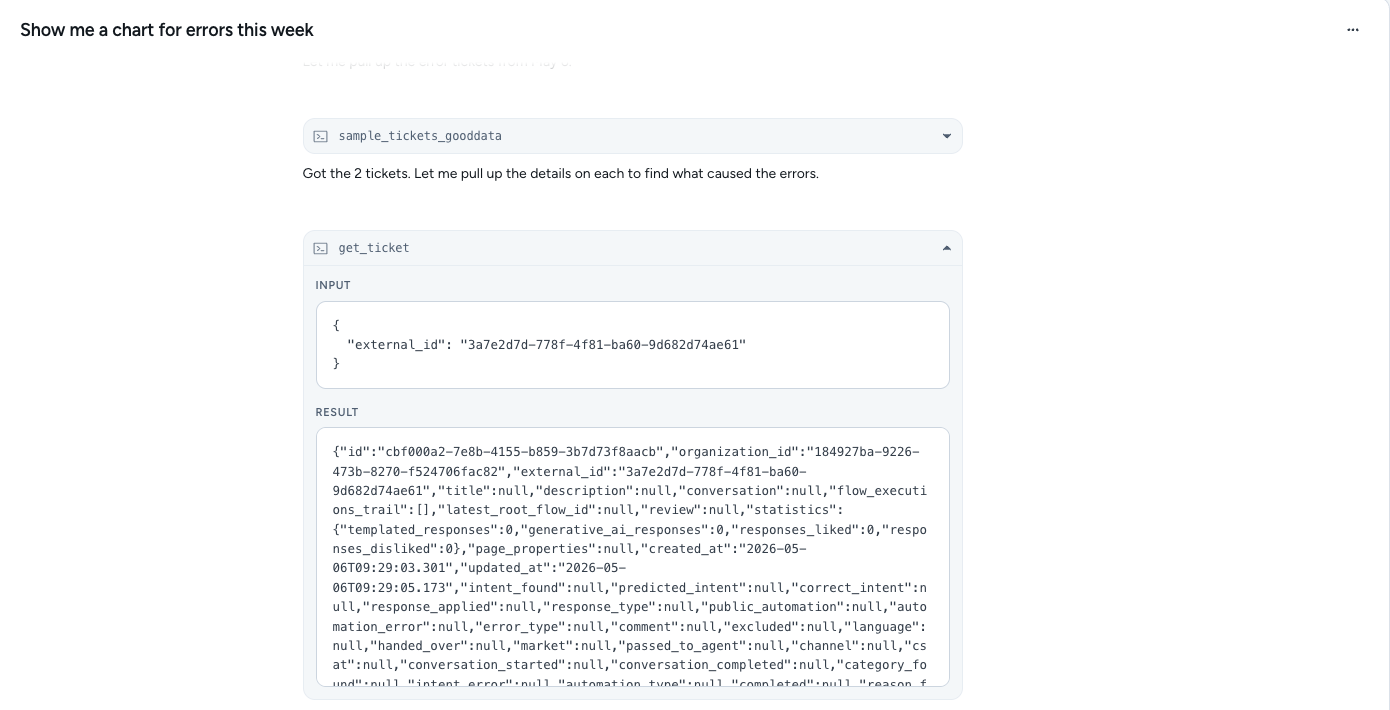
When Ask Genie queries your data, it shows each step it took as a collapsible row beneath the response. Expand any row to see the exact tool name along with the input it sent and the result it received. This makes it straightforward to verify what data Genie looked at when forming its answer.
Download Transcript
You can save a full record of any Ask Genie conversation to your computer.
- Open the conversation you want to export.
- Click the ⋯ (Chat options) menu in the top-right corner of the chat.
- Select Download Transcript.
The conversation is saved as a JSON file named after the chat title. You can use this file to share a session with a colleague, attach it to a support request, or keep a record for your own reference.
Example Prompts
See below for some example prompts to give you some inspiration.
Quality & improvement analysis
- What are customers' top complaints this month?
- Break down CSAT by intent and show where it's lowest.
- Which FAQs are failing to resolve customer queries?
- Where is the automation rate weakest, and what's driving it?
Ticket & execution debugging
- Ticket 12345 got a wrong response. What happened?
- Show me the execution trace for session XYZ.
- Which tickets escalated in the last 7 days and why?
Flow health & failures
- Show failed executions in the last 24 hours.
- Which flows have the highest drop-off rate?
- Are there any flows triggering unexpected fallbacks?
Analytics & trends
- What are the top predicted intents this week?
- How does ticket volume this week compare to last week?
- Show me CSAT trends over the past 30 days.
Wishes
Wishes are your usage credits for Ask Genie. Each question you ask spends some of your wishes - more complex answers use a little more.
To check your current usage, click Wishes used at the bottom of the left sidebar. This opens a panel showing a progress ring with the percentage of your wishes used so far.
Your wishes reset continuously over a rolling 24-hour window, so your allowance replenishes gradually rather than all at once at a fixed time.
If you reach your limit, Ask Genie will let you know with a message indicating your budget has been reached. Your wishes will begin replenishing shortly.
How to Give Feedback
Ask Genie is in beta, and your feedback directly shapes how it develops.
To give us feedback, click Share your thoughts in the card at the bottom of the left sidebar. This opens a short feedback form in a new tab where you can tell us what's working well and what could be better.
On the top right corner, you can also click on the ⋯ (More options) to Learn more (More options) to return to this documentation at any time.
Updated 4 months ago